---
title: [Infographic] Computer Networks - How They Work
description: Discover how computer networks operate, from device connections to data security, and learn about modern networking essentials with CompTIA Network+ training.
image: https://blog.trainace.com/hubfs/Imported_Blog_Media/computer-network-infographic.png
---
- Call: (301) 220 2802
- Email: info@trainace.com
[](http://www.trainace.com)
- [Home](https://www.trainace.com/)
- [About Us](https://www.trainace.com/pages/about-trainace-the-academy-of-computer-education)
- [Contact Us](https://www.trainace.com/pages/request-more-information)
- [Blog](https://blog.trainace.com)
[](http://www.trainace.com)
close
# A Large Range of Course Learning Paths
- [Home](https://blog.trainace.com/home)
- [About us](https://blog.trainace.com/home)
CompTIA
## \[Infographic\] Computer Networks - How They Work
- June 28 2012
- Paul Ricketts
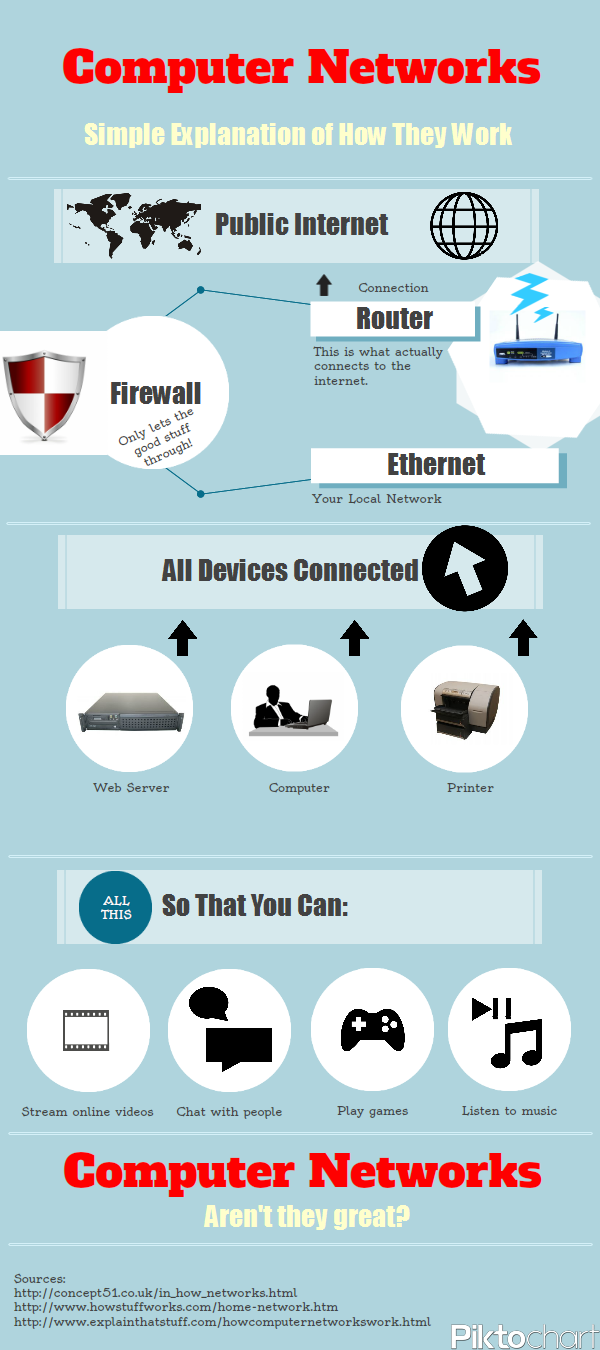
# Computer Networks Explained: How Devices Connect, Share Data, and Reach the Internet
**Last updated: 2026**
When you open a website, your computer does not connect to “the internet” in one jump. It asks for an address, finds a route, breaks your request into packets, sends those packets across several networks, and then puts the response back together on your screen.
That happens so quickly that it feels simple.
It is not simple. It is just well coordinated.
A computer network is a group of devices that can exchange data. At home, that might mean a laptop, phone, printer, smart TV, game console, and wireless router. In a business, it can include switches, access points, firewalls, servers, cloud services, identity systems, VPNs, and monitoring tools.
The job is the same in both cases: get the right data from the right device to the right destination without losing it, exposing it, or sending it somewhere it does not belong.
## What a Network Actually Does
A network lets devices share information. That could mean opening a website, sending an email, joining a video call, printing a document, backing up files, or signing in to a cloud application.
For that to work, each device needs a few things:
- An address
- A way to find other addresses
- A route out of the local network
- A method for sending and receiving data
- Security controls that decide what is allowed
Most users never see those pieces. A technician does.
## The Devices That Make a Network Work
A **switch** connects devices inside the same local network. If several office computers, printers, and servers use wired Ethernet, they usually connect through a switch. The switch keeps track of where devices are and forwards traffic only where it needs to go.
A **router** connects one network to another. In a home, the router usually connects your local network to your internet provider. In a business, routers may connect offices, cloud environments, data centers, and remote users.
A **wireless access point** connects devices over Wi-Fi. In many homes, the access point is built into the same box as the router. In larger offices, access points are placed around the building so laptops, phones, scanners, and tablets can move without dropping connection.
A **firewall** inspects traffic and enforces rules. It can block unwanted inbound traffic, limit outbound traffic, segment departments, inspect applications, and support VPN or zero trust access.
Cisco describes switches, routers, and wireless access points as the basic building blocks that let connected devices communicate with each other and with other networks like the internet.
## How Your Device Joins the Network
When your laptop connects to Wi-Fi, it needs network settings before it can do much. Most networks use DHCP, the Dynamic Host Configuration Protocol, to assign those settings automatically.
DHCP can give your device:
- An IP address
- A subnet mask
- A default gateway
- DNS server addresses
- Lease timing and other options
The IP address identifies your device on the network. The subnet mask tells it which addresses are local. The default gateway is where traffic goes when the destination is outside the local network. DNS tells it how to find names like `trainace.com`.
Without DHCP, someone would have to configure those settings manually. That still happens in some server and network device setups, but most user devices get them automatically.
## How Names Become Addresses
People remember names. Networks use addresses.
When you type a domain name into a browser, your computer asks DNS for the IP address behind that name. DNS is the system that maps readable names to network addresses. The original DNS standards go back decades, but DNS is still one of the core services behind almost every internet action.
If DNS fails, the rest of the network may still be working. That is why a computer can sometimes ping an IP address but fail to open a website by name. The route exists. The name lookup does not.
Modern DNS also has security and privacy layers. DNSSEC can help protect DNS records from tampering, while encrypted DNS options such as DNS over TLS and DNS over HTTPS can protect DNS queries from being read or altered in transit.
## How Data Moves Across the Internet
Once your device knows where to send traffic, it breaks data into packets. Each packet carries addressing information so routers can forward it toward the destination.
For many years, the basic teaching model was simple: TCP handles reliable connections, UDP handles faster connectionless traffic, and IP moves packets between networks.
That is still useful, but the 2026 picture is a little richer.
TCP still matters. UDP still matters. But protocols such as QUIC and HTTP/3 have changed how modern web traffic behaves. HTTP/3 runs over QUIC, which uses UDP underneath while adding features that help with speed, encryption, and connection handling. That matters for websites, streaming, mobile networks, and applications where latency is noticeable.
TLS also sits in the middle of everyday networking now. When you see HTTPS, TLS is what helps protect the session from eavesdropping and tampering. TLS 1.3, defined by the IETF in RFC 8446, is the modern version most administrators should recognize.
## Wired, Wireless, and Cloud Networks
A local network can be wired, wireless, or both.
Ethernet is still the reliable choice for desktops, servers, switches, access points, cameras, and anything that needs stable performance. Wi-Fi is what gives users mobility.
By 2026, Wi-Fi 6 and Wi-Fi 6E are common, and Wi-Fi 7 is moving into newer devices and access points. IEEE 802.11be, the technical basis for Wi-Fi 7, was published in 2025. Wi-Fi 7 is designed for higher throughput, lower latency, wider channels, and better performance in busy environments. That does not mean every office needs to replace its wireless network immediately. It means network technicians now need to understand 2.4 GHz, 5 GHz, 6 GHz, channel width, interference, roaming, and client compatibility more carefully than before.
Cloud networks add another layer. Many businesses no longer keep every application inside one building. Users may connect to Microsoft 365, AWS, Azure, Google Cloud, SaaS apps, remote desktops, and hosted security tools in the same workday. The network is no longer just “the office LAN.” It is the connection between users, identities, devices, applications, and data.
## Why IPv6 Still Matters
IPv4 is the older addressing system most beginners learn first. It uses addresses like `192.168.1.25`. IPv6 uses much longer addresses and was designed to solve IPv4 address exhaustion while improving internet-scale addressing.
IPv6 is not new, but it is no longer optional background knowledge. Mobile carriers, cloud platforms, internet providers, and enterprise networks all use it in different ways. A technician does not need to memorize every IPv6 detail on day one, but they do need to recognize IPv6 addressing, dual-stack networks, router advertisements, and the troubleshooting problems that appear when IPv4 and IPv6 behave differently.
The current IPv6 specification is RFC 8200 from the IETF.
## Network Security Has Changed
Older network security often assumed that anything inside the office network was more trustworthy than anything outside it. That assumption is weaker now.
People work from home. Applications live in the cloud. Devices move between networks. Attackers use stolen credentials. A laptop can be “inside” the network and still be compromised.
That is why zero trust has become part of modern network thinking. NIST SP 800-207 defines zero trust as a shift away from broad perimeter trust and toward protecting users, assets, and resources directly. In plain language: do not trust a request just because it came from the office network. Check identity, device state, policy, and context.
This does not make firewalls obsolete. It changes what firewalls, identity tools, endpoint security, segmentation, logging, and access policies are expected to do together.
## How This Connects to Network+ Training
CompTIA Network+ N10-009 reflects this modern mix. The current exam covers networking fundamentals, implementations, operations, security, and troubleshooting. That includes older foundations like cabling, IP addressing, routing, DNS, and DHCP, but also newer expectations around cloud, wireless, security, and performance-based troubleshooting.
That is the right way to learn networking. Start with the pieces you can see: devices, addresses, cables, Wi-Fi, and basic commands. Then connect those pieces to what happens in real environments: users cannot reach an application, DNS is wrong, a VLAN is misconfigured, a firewall rule blocks traffic, a wireless client roams poorly, or a cloud service is reachable from one network but not another.
Networking becomes easier when you stop treating it as a vocabulary list.
It is a chain of decisions. Where is the device? What address does it have? What name is it trying to resolve? Where is the gateway? Which route is being used? What is blocking or allowing the traffic? What changed?
That is the work.
## Sources
- [CompTIA Network+ N10-009](https://www.comptia.org/en-us/certifications/network/)
- [Cisco Networking Basics](https://www.cisco.com/site/us/en/learn/topics/small-business/networking-basics.html)
- [IETF RFC 1034: Domain Names](https://datatracker.ietf.org/doc/html/rfc1034)
- [IETF RFC 2131: DHCP](https://datatracker.ietf.org/doc/html/rfc2131)
- [IETF RFC 8200: IPv6](https://datatracker.ietf.org/doc/html/rfc8200)
- [IETF RFC 8446: TLS 1.3](https://datatracker.ietf.org/doc/html/rfc8446)
- [IETF RFC 9114: HTTP/3](https://datatracker.ietf.org/doc/html/rfc9114)
- [NIST SP 800-207: Zero Trust Architecture](https://csrc.nist.gov/pubs/sp/800/207/final)
- [IEEE 802.11be-2024](https://standards.ieee.org/ieee/802.11be/7516/)
###### Tags:
[CompTIA](https://blog.trainace.com/topic/comptia-2) [Network+](https://blog.trainace.com/topic/network)
###### Share on:
### Leave Your Comment Here
[](http://www.trainace.com)
IT & Cybersecurity training from beginner to advanced. Individual, Corporate and Government Group training.
- Add:
7833 Walker Drive, Greenbelt
- Call: (301) 220 2802
- Info@trainace.com
### Links
- [Home](https://www.trainace.com/)
- [About Us](https://www.trainace.com/pages/about-trainace-the-academy-of-computer-education)
- [Contact Us](https://www.trainace.com/pages/request-more-information)
- [Blog](https://blog.trainace.com)
### Services
- [Home](https://www.trainace.com/)
- [About Us](https://www.trainace.com/pages/about-trainace-the-academy-of-computer-education)
- [Contact Us](https://www.trainace.com/pages/request-more-information)
- [Blog](https://blog.trainace.com)
### Contacts
Enter your email address to register to our newsletter subscription
(c) 2024 All Rights Reserved.
```json
{
"@context" : "https://schema.org",
"@type" : "BlogPosting",
"author" : {
"@type" : "Person",
"name" : "Paul Ricketts",
"url" : "https://blog.trainace.com/author/paul-ricketts"
},
"dateModified" : "2026-06-11T20:32:17.402Z",
"datePublished" : "2012-06-28T17:43:08.000Z",
"headline" : "[Infographic] Computer Networks - How They Work",
"image" : [ "https://blog.trainace.com/hubfs/Imported_Blog_Media/computer-network-infographic.png" ],
"mainEntityOfPage" : {
"@id" : "https://blog.trainace.com/computer-networks",
"@type" : "WebPage"
},
"publisher" : {
"@type" : "Organization",
"logo" : {
"@type" : "ImageObject",
"url" : "https://blog.trainace.com/hubfs/social-suggested-images/www.trainace.comcdnshopfileslogo_540x_623b6867-c8bc-426b-89b0-6e2aac741c80_1204x630-Apr-22-2025-04-39-30-1369-PM.png"
},
"name" : "TrainACE"
}
}
```